Help

Help & videos

From plugging in a screen to streaming your desktop into a browser. Pick your platform to see only what applies to you.
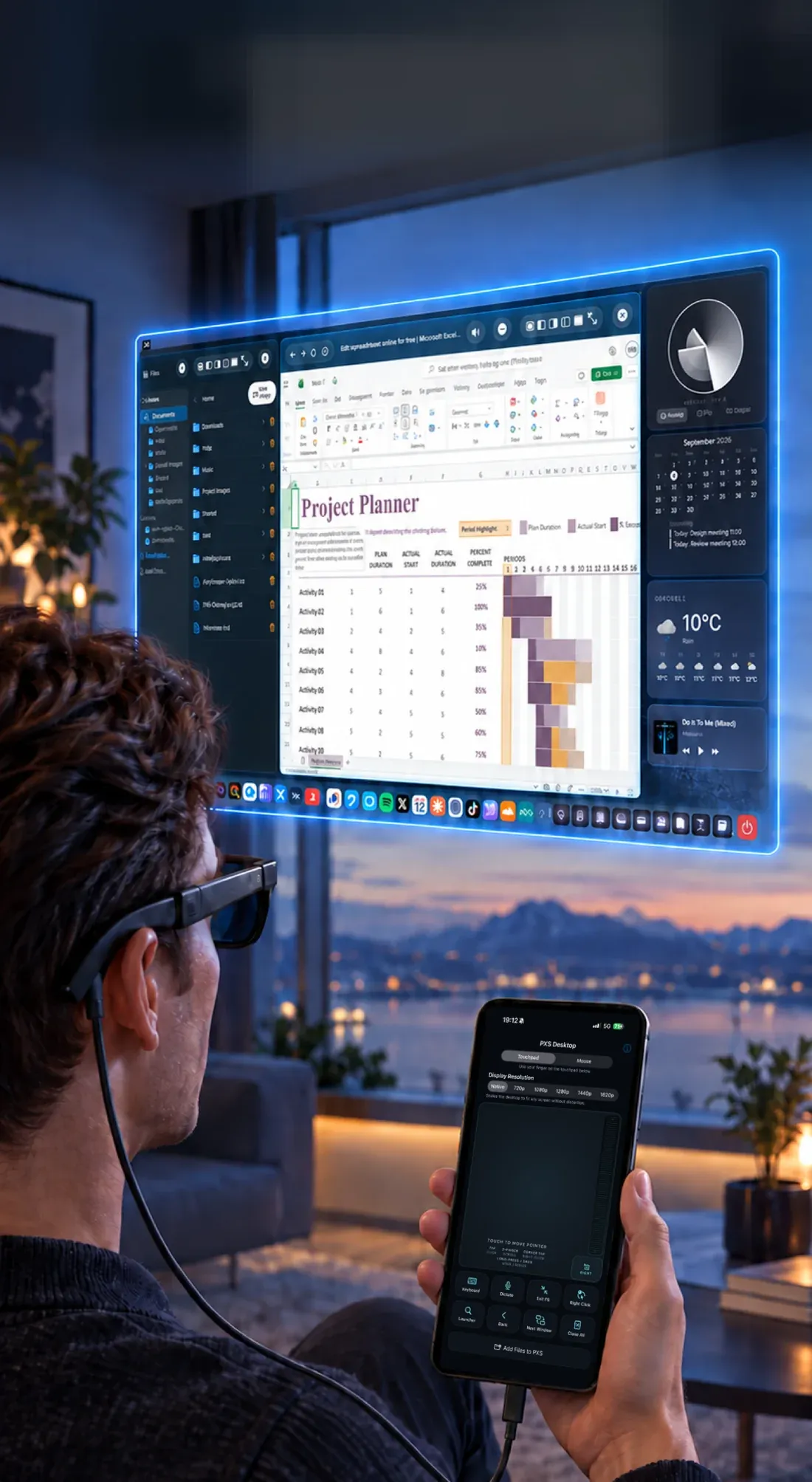
  1. AR glasses showing a floating PXS desktop, with an iPhone as the touchpad. Video coming soon
    • iPhone & iPad

    Connect a monitor, TV or AR glasses

    Plug in, and the desktop appears on the big screen while your iPhone becomes the touchpad.

    What you need

    • A cable that carries video. Charging cables carry power only, including the white one in the iPhone box. Use the cable that came with your glasses or monitor, or a Thunderbolt cable.
    • For an HDMI screen: a USB-C to HDMI adapter, such as Apple’s USB-C Digital AV Multiport Adapter.
    • AR glasses that work as a USB-C display: Viture, XREAL, RayNeo, Rokid or Lenovo Legion Glasses.

    Connect

    1. Open PXS Desktop on your iPhone.
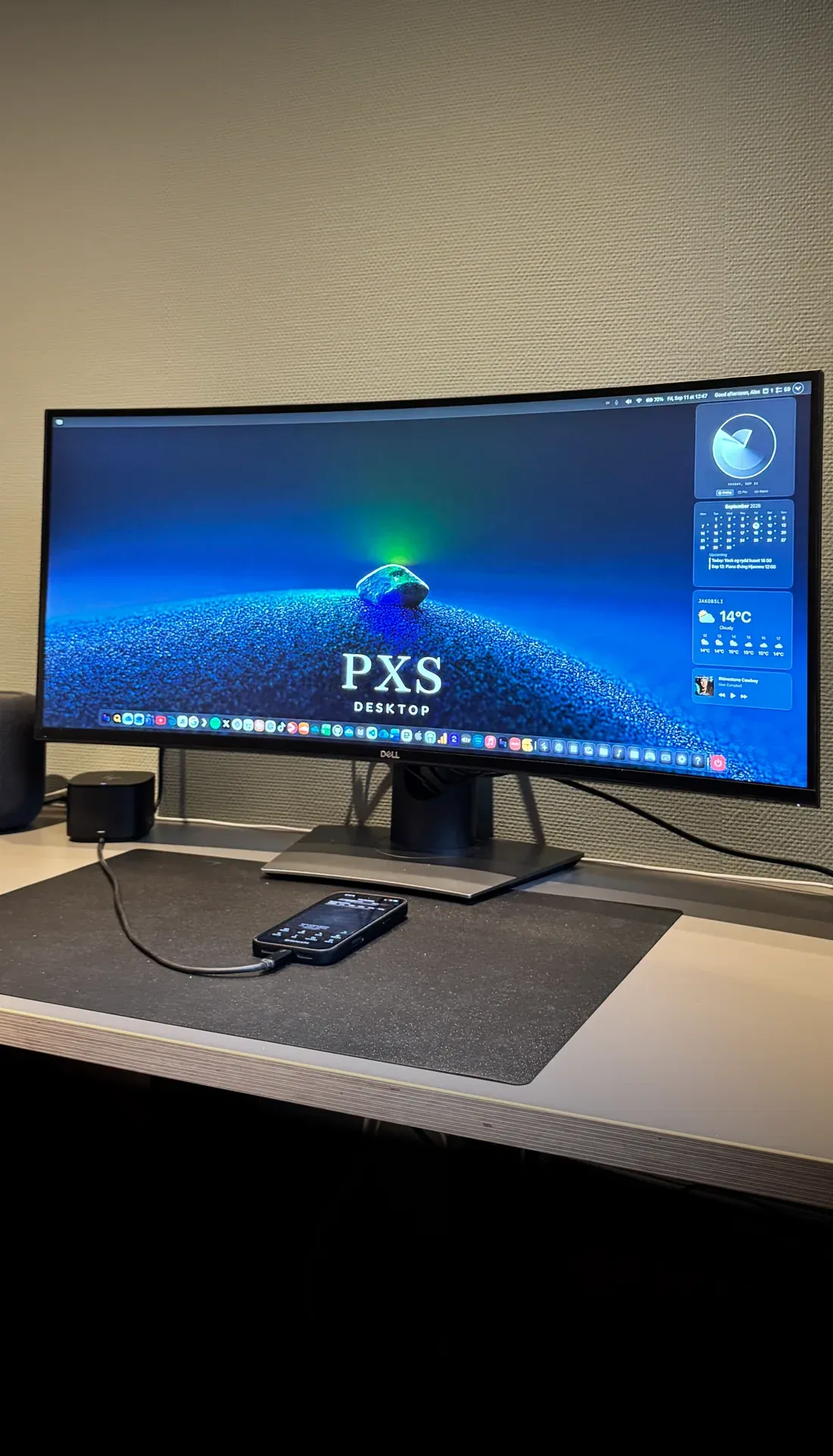
    2. Plug the cable into the iPhone and into the screen or glasses.
    3. The desktop appears on the screen, and the iPhone turns into the touchpad.

    Your iPhone can drive a 4K screen. If nothing appears, try another cable first: it’s almost always the cable.
    No cable? Use Screen Mirroring

    1. Open Control Center on the iPhone and tap Screen Mirroring.
    2. Choose your Apple TV or AirPlay TV.
    3. PXS puts the desktop on the TV.
  2. An iPhone cabled to a desk monitor running PXS. Video coming soon
    • Android

    Connect a screen by cable on Android

    Phones with USB-C video output drive a monitor or TV directly, at the screen's own resolution.

    What you need

    • A phone with USB-C video output (DisplayPort Alt Mode). Many budget phones don’t have it. AnyScreen and DirectScreen work without it.
    • A USB-C cable that carries video, or a USB-C to HDMI adapter. Charging cables carry power only.

    On Samsung Galaxy: set DeX to mirror

    Samsung sends the picture through DeX. Set it once, and PXS takes over the screen:

    1. Open Settings › Connected devices › Samsung DeX.
    2. Under Connected display, choose Mirrored.

    Connect

    1. Open PXS Desktop.
    2. Plug in the screen. The desktop appears there, and your phone becomes the touchpad.

    Cable mode is tested on a Samsung Galaxy S22 so far. If your phone works too, or doesn’t, tell us on the feedback board.
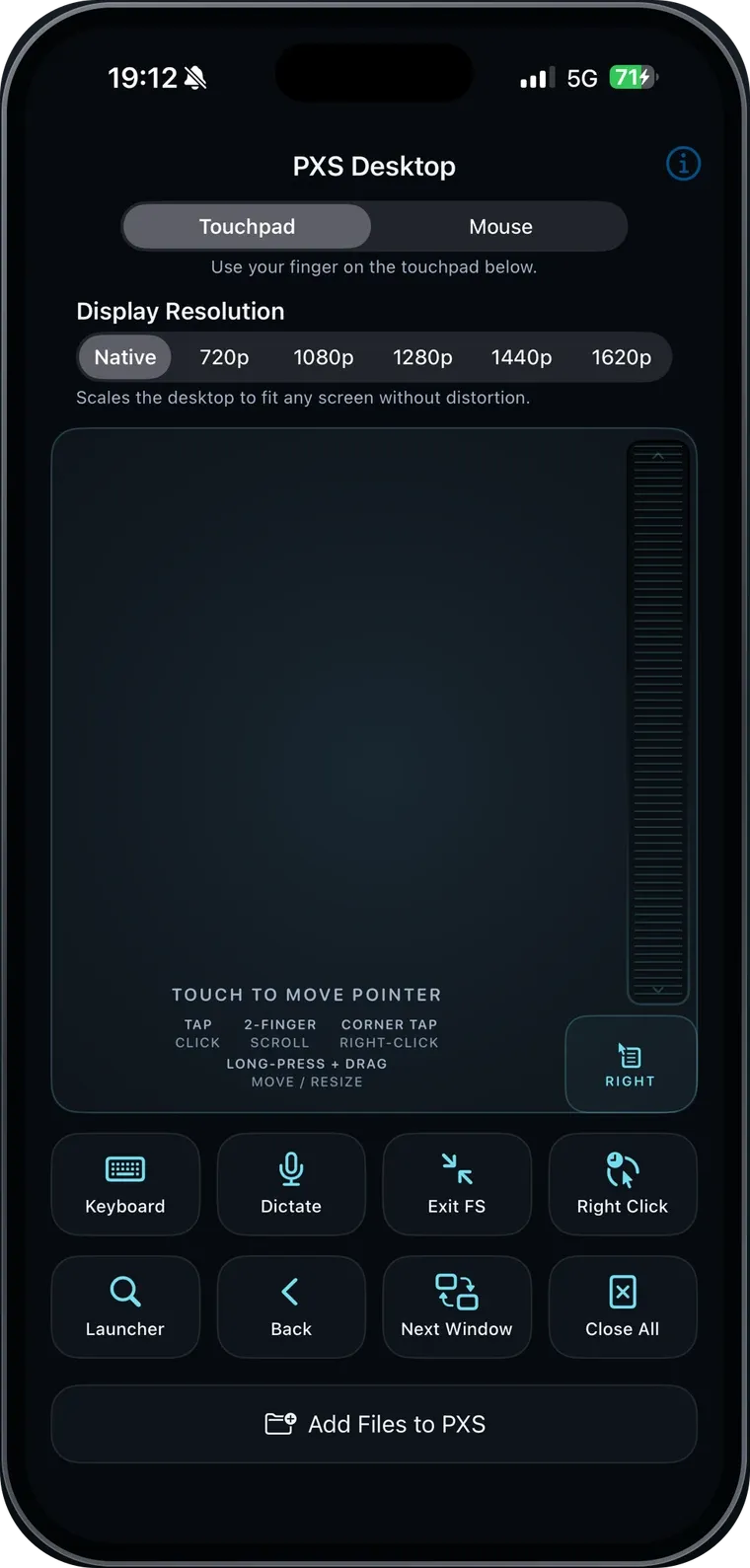
  3. The PXS touchpad screen on an iPhone. Video coming soon
    • iPhone & iPad
    • Android

    Use your phone as a touchpad

    The whole phone screen steers the pointer on the big screen, and the phone's keyboard types there.

    Gestures

    • Move the pointer: slide one finger.
    • Click: tap.
    • Right-click: tap a corner of the touchpad.
    • Scroll: slide two fingers.
    • Move or resize a window: long-press, then drag.

    Type, or talk

    Click into a text field on the desktop, then tap Keyboard on the phone to type. Or tap Dictate and just speak: the words go straight into the field.

  4. Filmed on iPhone. The Android app has the same window buttons.
    • iPhone & iPad
    • Android

    Move, snap and resize windows

    Every app opens in a real window. Drag it, resize it, snap it to half the screen or take it fullscreen.

    The title bar

    The buttons in each window’s title bar snap it to the left or right half, centre it, maximize it, take it fullscreen, minimize it to the dock, or close it.
    Move and resize

    • Move: drag the title bar.
    • Resize: drag an edge or a corner.
    • Snap by dragging (Android): drag a window against the left or right edge of the screen, and it fills that half.
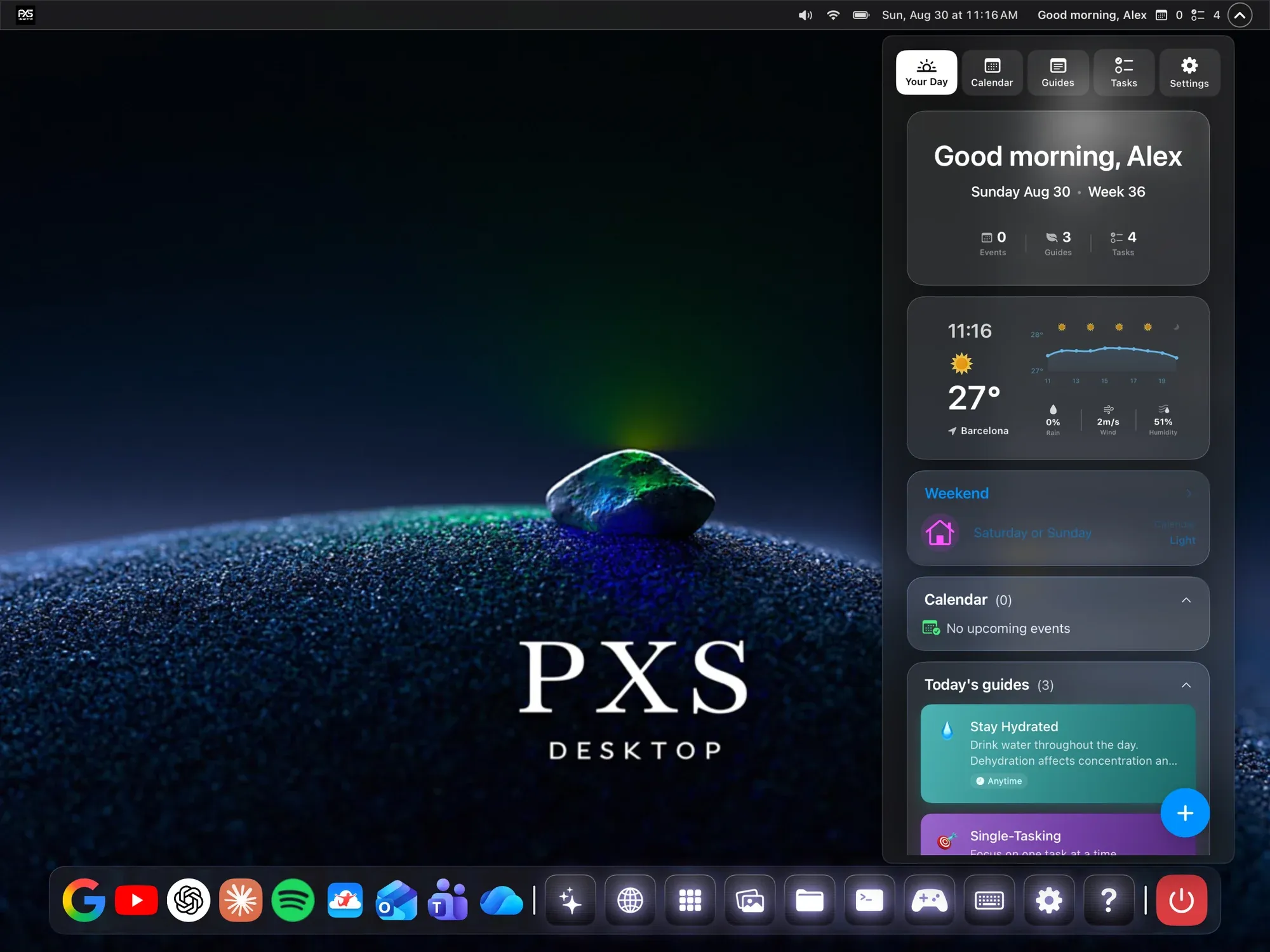
  5. The PXS desktop with its dock along the bottom. Video coming soon
    • iPhone & iPad
    • Android

    The dock

    Open apps, find anything, and bring back minimized windows.

    • Open an app: click its icon in the dock.
    • Minimize: use the title bar button. The window shrinks into the dock as a thumbnail; click the thumbnail to bring it back.
    • Find anything else: open the launcher from the dock and type, or tap the microphone and say what you want.
  6. Video coming soon

    • Android

    See all your windows at once

    The window overview lays every open window out as a card, even the ones hidden under others.

    1. Click the window overview button in the dock, next to the launcher.
    2. Every open window appears as a card.
    3. Click a card to bring that window forward, or click the background to go back.

    On iPhone and iPad, the window overview is coming in an update.

  7. Filmed with an iPhone in a parked car. The steps are the same on Android.
    • iPhone & iPad
    • Android

    AnyScreen: your desktop in any browser

    No cable and no monitor. A laptop, a smart TV or a parked car's browser becomes the screen.

    What you need

    • A modern web browser on the other screen.
    • The phone and that screen on the same Wi-Fi, or the screen joined to your phone’s hotspot.

    Connect

    1. In PXS on your phone, start AnyScreen. The phone shows a code.
    2. On the other screen, open bytenine.com/pxs.
    3. Type the code there. The desktop appears in the browser.
    4. Make the browser fullscreen for the whole screen.

    Control it from that screen

    Switch on Control from that screen, and the other screen’s mouse, touchscreen and keyboard drive the desktop too: click, scroll and type. Your phone stays a touchpad as well.

    • iPhone and iPad: the switch is next to Start, so you decide before the session begins.
    • Android: set it before you start, or in Settings › AnyScreen at any time, even during a session.

    Anyone with the pairing code can then control your phone, so leave it off on a screen you don’t trust.

    In a car

    AnyScreen in a car is for passengers and parked use only, never while driving. Some cars freeze the picture once they move: that’s the car protecting the driver, not a bug.
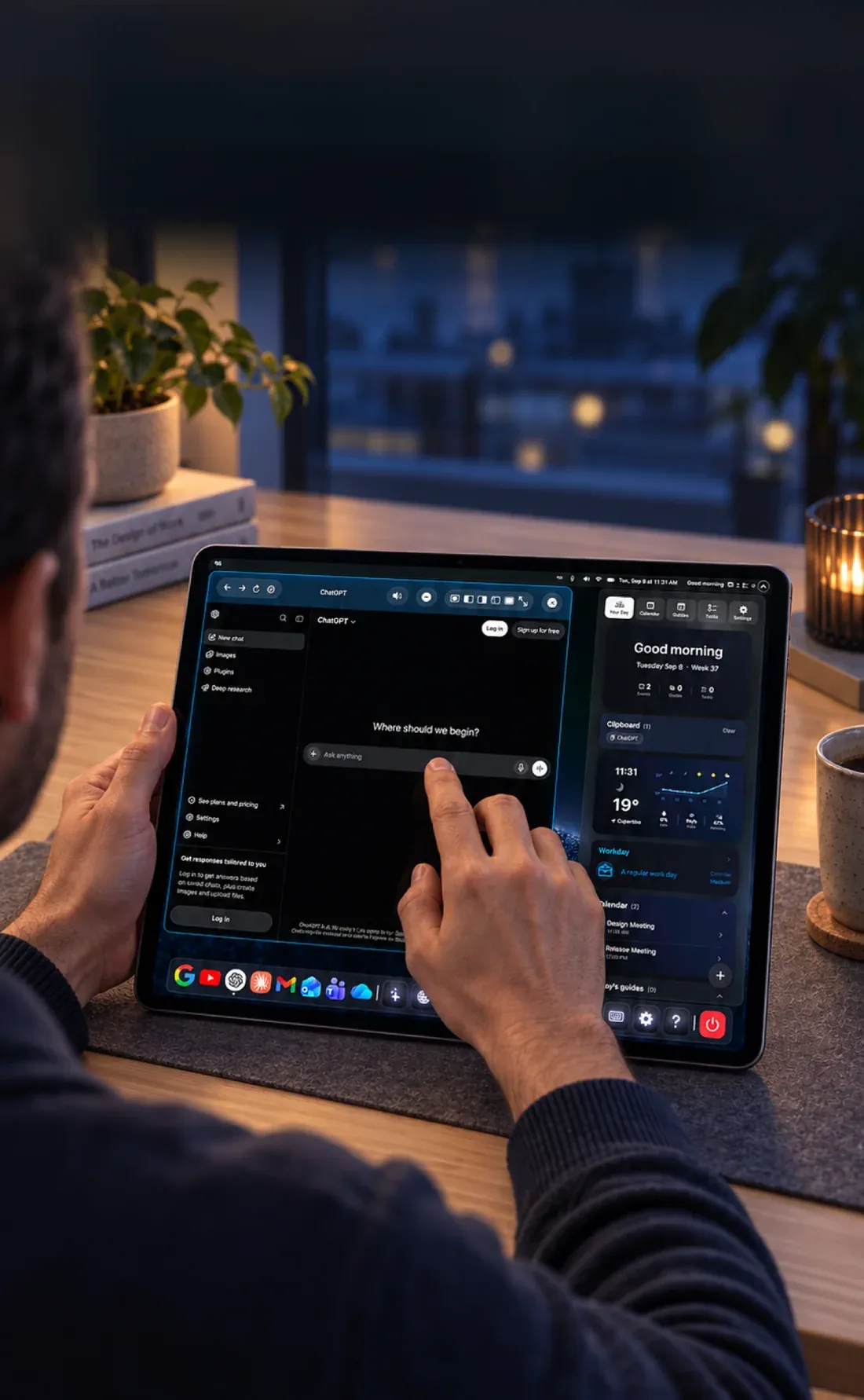
  8. The PXS desktop running directly on an iPad. Video coming soon
    • iPhone & iPad
    • Android

    Use the desktop on the device itself

    No second screen at all. DirectScreen runs the whole desktop on your iPad, Android tablet or phone.

    1. Open PXS Desktop.
    2. On iPhone and iPad, tap Show on This Screen. On Android, tap Open on this screen.
    3. Use the desktop by touch: tap, drag and scroll right on the screen.

    On an iPad, add a Bluetooth keyboard and mouse and it works like a laptop. On a phone, it’s the same desktop, just smaller.
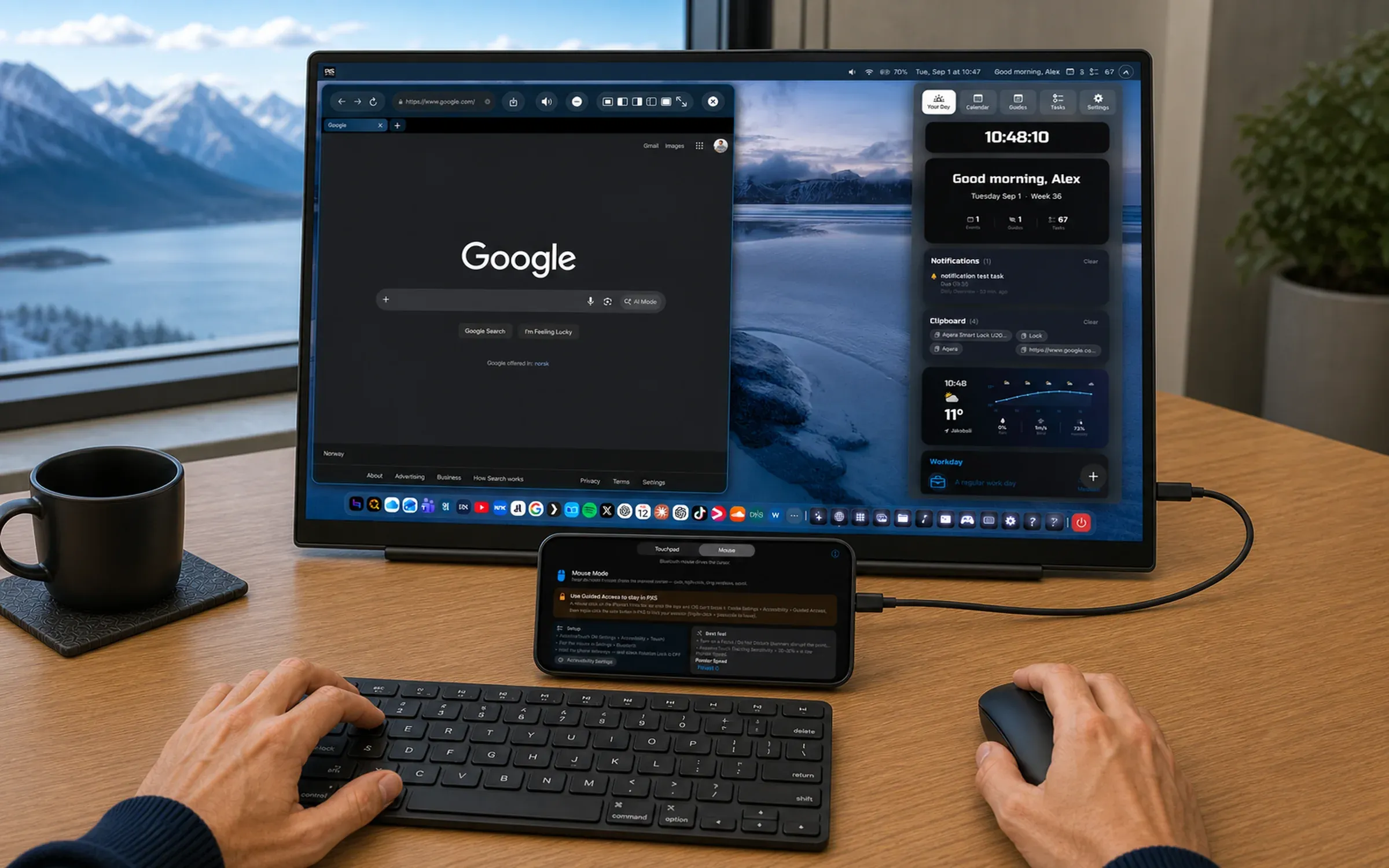
  9. An iPhone driving a monitor, with a Bluetooth keyboard and mouse on the desk. Video coming soon
    • iPhone & iPad

    Use a Bluetooth mouse and keyboard

    Pair them with your iPhone or iPad for the full laptop feel.

    1. Pair the keyboard and mouse in Settings › Bluetooth on your iPhone or iPad.
    2. The first time you use a mouse, PXS walks you through a one-time AssistiveTouch setup that iOS needs for it.
    3. Keep typing on the Bluetooth keyboard: while a mouse is connected, iOS hides the touch keyboard.

    Copy and paste work best with ⌘C and ⌘V on the keyboard.

Still stuck?

Write to us from PXS support, or post on the feedback board. Feature requests there are public and voted on, and they genuinely decide what gets built next.