
New in PXS Desktop 1.2
Screen Sharing: your Mac in a PXS window
PXS 1.2 adds Screen Sharing. See and control a Mac from your PXS desktop, as smooth video with sound through the free PXS Helper, or with nothing installed through the Mac's own Screen Sharing.
- iPhone & iPad
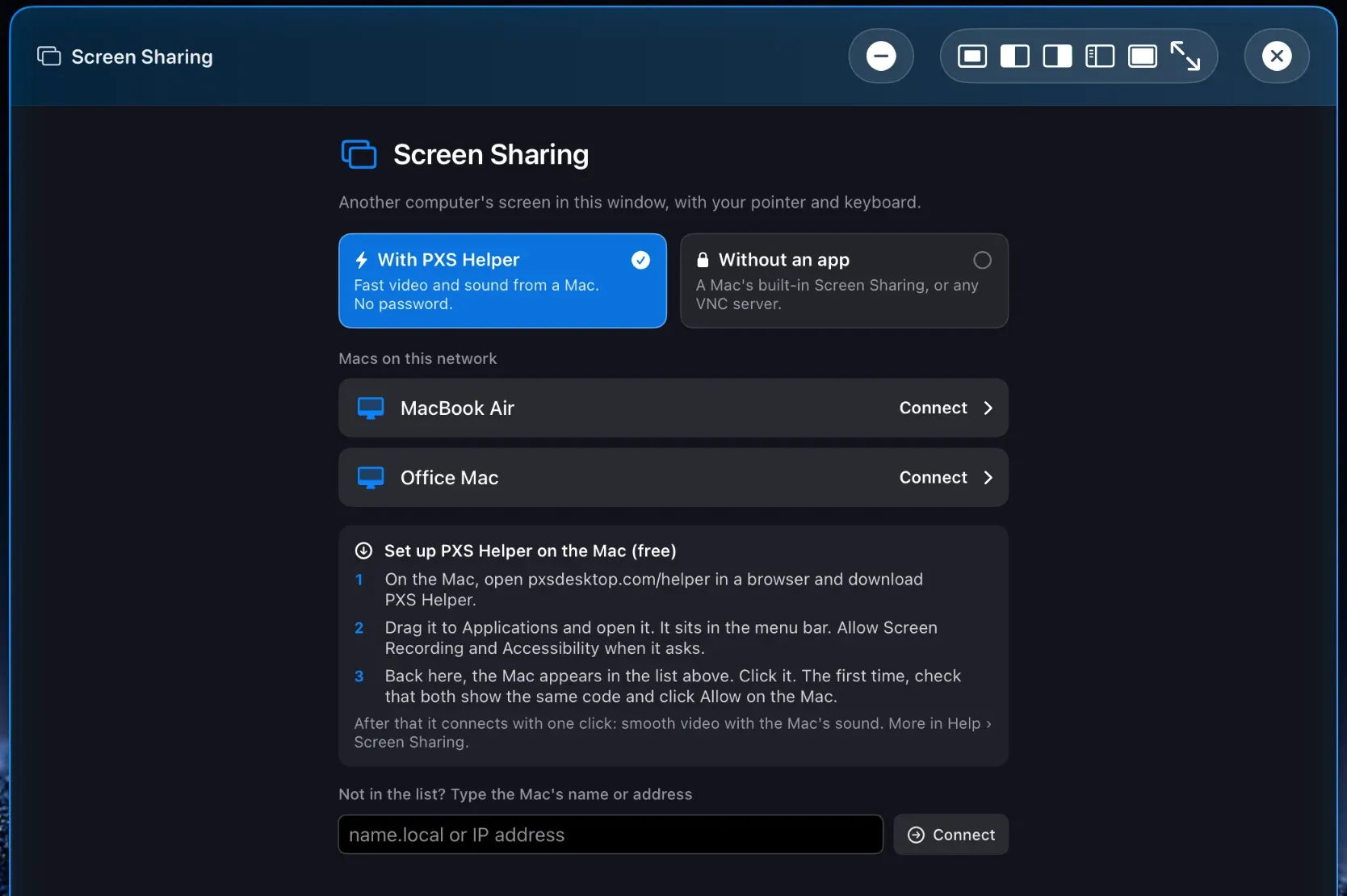
Your phone is the computer, but sometimes the thing you need is on the Mac at the other end of the house. Screen Sharing puts that Mac in a PXS window: you see its screen, and your pointer and keyboard work on it. It was the first request on our feedback board.
There are two ways in, and the window has a tab for each. Both need the phone and the Mac on the same network.
The fast way: PXS Helper
PXS Helper is a small free app for the Mac. It sends the Mac’s screen as video from the Mac’s own video chip, which is what makes scrolling and films smooth, and it carries the Mac’s sound.
On the Mac, once:
- Open pxsdesktop.com/helper and download PXS Helper.
- Drag it to Applications and open it. It has no window: it sits in the menu bar.
- macOS asks for two permissions. Screen Recording lets the helper send the screen. Accessibility lets your pointer and keyboard work on the Mac. The helper’s menu shows a button for each until it is done.
In PXS Desktop:
- Open Screen Sharing and stay on the tab With PXS Helper.
- Your Mac is in the list under Macs on this network. Click it.
- The first time, the Mac and PXS show the same six digits. Check that they match and click Allow on the Mac.
That is the only time you are asked. From then on, one click connects, with no code and no password.
What you can do once connected
- Point, click, drag and scroll as on any PXS window. A right-click gives the Mac’s own menu.
- Type with the Keyboard button in the bar, which sends what you type on the phone. A Bluetooth keyboard types on the Mac while the Screen Sharing window is in front.
- Choose a display. A Mac with several displays shows one at a time, and the bar has a button for each.
- Fit or Fill height. Fit shows the whole display. Fill height makes it as tall as the window, with Left and Right to move across a wide display.
- Sound. The Mac’s sound plays where you are, and the Mac’s own speakers stay quiet while you listen. The Sound button turns it off.
The picture is sent at the size your window draws it, so a small window doesn’t cost a large picture.
With nothing installed
The other tab, Without an app, uses the Screen Sharing that is built into every Mac. It also works with any other computer that runs a VNC server.
- On the Mac, switch on System Settings → General → Sharing → Screen Sharing.
- In PXS, choose the computer in the list, or type its name.
- Sign in with that Mac’s user name and password.
This way sends still pictures, not video. Against a Mac it manages about a dozen pictures a second, and there is no sound. It is fine for a settings change or a file, and it is there when you can’t install anything. For everyday use, the helper is the one to have.
Private by design
- With PXS Helper, the phone and the Mac talk directly to each other on your network. There is no account and no server in between.
- Only a device you have allowed on the Mac can connect. The helper’s menu lists them, with Forget for each, and shows when one is connected.
- Without the helper, your Mac’s password is used to sign in and then forgotten when you close the window. PXS never stores it.
Good to know
- Both ways work on your local network only. Reaching the Mac from somewhere else is not part of this version.
- PXS Helper needs macOS 14 or later, and runs on Apple silicon and Intel Macs.
- It works with a locked Mac and with a sleeping one. Connecting wakes the Mac and its display and shows the lock screen, and you type the Mac’s password from the phone to log in. Waking from sleep needs Wake for network access, which is in System Settings under Battery or Energy.
- Screen Sharing arrives with PXS 1.2, for iPhone and iPad.